

Calendar Sync is an optional feature which may have been purchased by your center. This feature copies non-confidential appointment information from Titanium to Microsoft Exchange (Outlook) or Google calendars. Placeholders will not be copied to your external calendar.
This feature is commonly used to show “busy” times on Outlook or Exchange calendars, and to allow Titanium users to view their Titanium schedules when they are out of the office. You should ask your center administrator how calendar sync will function in your center, including type of external calendar you can use, when calendar sync will occur, and whether you can create appointments on your external calendar to be copied into Titanium.
This feature is set up by your center administrator.
Notes: If you want to sync to a Google web mail calendar, create your Google account before proceeding.
What would you like to do?
oCreate Appointments to be Copied into Titanium
1. Ask your center administrator whether sync will be to Exchange, Google or both.
2. From the calendar screen, click Settings > User Settings.
3. Click the Calendar Sync tab. (Note: If your center is not using this feature, the tab will not be visible.)
4. For Exchange calendar sync:
oEnter your email address.
oClick Ok.
oExit Titanium and log back in.
oClick Ok on the message and click to accept the permissions prompt or to request approval, and click Accept.
5. For Google calendar sync:
oClick Authorize.
oIf necessary, click to allow your web browser to open.
oLog into your Google account.
oClick Accept.
oClose your browser window.
oIn Titanium, click OK on the "Authorization request successfully completed" window.
oUse the pull down menu to select the calendar to sync with Titanium. (Note: You can stop the sync to the Google calendar in the future by clicking Revoke.)
oClick Ok.
Create Appointments to be Copied into Titanium
If your system administrator chooses to do so, it is possible for appointments created on external calendars to be copied into Titanium. If your system administrator has chosen to use this feature, they should provide a prefix to be placed in the subject line of appointments to be imported into Titanium. To create an external appointment that will be copied into Titanium:
1. On your external calendar, open a new appointment.
2. In the subject field, enter the prefix provided by your system administrator.
3. Enter the rest of the subject.
4. Enter the appointment information and save as you normally would.
5. After the next full calendar sync copies the appointment to Titanium, edit the appointment to make required changes to appointment type, appointment code, and client information.
Note: Recurring meetings or those with multiple attendees will not be synced to Titanium. Users must manually create or copy these appointments. If you accept a meeting notice from someone else, you must either manually add the prefix in Step 2 above (for Outlook) or duplicate the appointment and enter the prefix (Google).
1. Click the Titanium Calendar icon on your system tray.
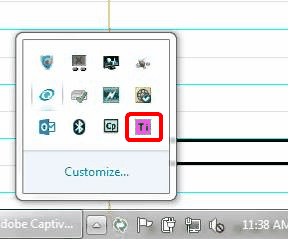
2. Choose Open.
3. On the pop-up window, click Synchronize > Start a Full Sync now.
4. Click File > Minimize to Tray.
5. If an error occurs indicating that the sync failed, contact your center administrator for assistance.
Note: If you have a Google account already, you can use it with Calendar Sync. However, if you keep personal items on the calendar, you may wish to create a secondary calendar (Step 13).
1. Use your web browser to navigate to the Google accounts page.
2. Click Create an Account.
3. Enter the information to create an account (i.e., name, password, accept terms of service).
4. Click Next Step.
5. On the next screen, click No Thanks.
6. On the next screen, click Get Started.
7. Click the Settings icon in the upper, right corner, and choose Calendar.
8. Click the calendar settings gear icon, and choose Settings from the drop down menu.
9. Click the Calendars tab.
10. Click the name of the calendar in the list.
11. If desired, change the name of the calendar to make it easier to find in user settings in Titanium. (Note: The calendar will default to your user name. Consider renaming it something like TitaniumYourName.)
12. Click Save.
13. To create a secondary calendar, click Create New Calendar.
oEnter the desired calendar name.
oClick Create Calendar.
14. Log out.
